Ultimate Autopsy Cheat Sheet
Ultimate Autopsy Cheat Sheet
Digital Forensics Reference: Ingest Modules, Interface & TSK Commands.
1. Case Workflow
The standard procedure for starting a forensic investigation in Autopsy.
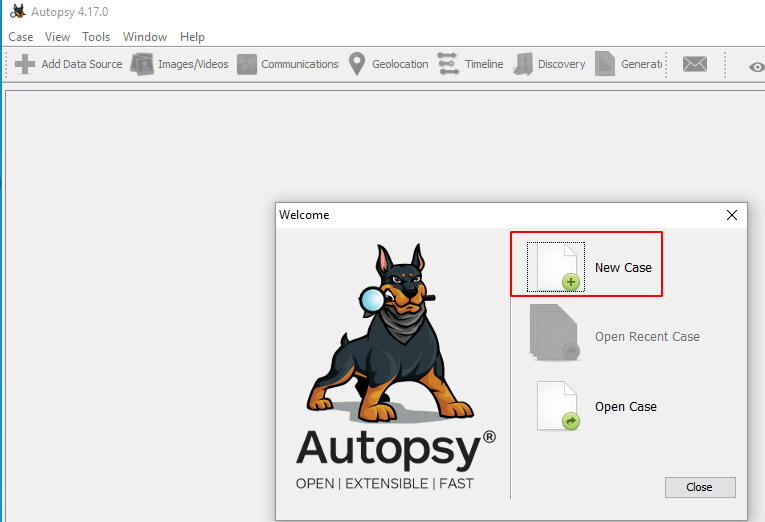
1. New Case
Steps: File > New Case
- Single User: Saves case locally (SQLite DB).
- Multi User: Requires PostgreSQL/Solr server setup.
2. Add Data Source
- Disk Image: .dd, .E01, .vmdk (VMs).
- Local Disk: Physical drive attached to forensics rig.
- Logical Files: A specific folder or file on your OS.
3. Configuration
- Time Zone: Set to UTC or system local time.
- Ingest: Select modules to run (see Section 2).
2. Ingest Modules (The Engines)
These are the scripts that analyze the data. Choosing the right ones saves hours of processing time.
| Module Name | Functionality | Resource Cost |
|---|---|---|
| Recent Activity | Extracts Browser History, Cookies, Recents Docs, Registry keys. | Low |
| Hash Lookup | Flags "Known Bad" (NSRL) files and ignores "Known Good" (OS files). | Medium |
| File Type ID | Identifies file types by signature (Magic Bytes), not extension. | Fast |
| Exif Parser | Extracts geolocation (GPS) and camera model from JPEGs. | Fast |
| Keyword Search | Indexes all text for searching. Essential but slow. | Very High |
| Email Parser | Extracts MBOX, PST, OST email archives. | Medium |
| Encryption Detection | Flags BitLocker, VeraCrypt, or password-protected Office files. | Fast |
| PhotoRec Carver | Recovers deleted files from unallocated space. | High |
3. Interface Navigation
Understanding the three-pane layout of Autopsy.
1. Tree Viewer (Left Pane)
The hierarchy of your evidence.
- Data Sources: Browse the raw file system (C:, D:).
- Views: Files categorized by type (Images, Videos, Documents).
- Results: Output from Ingest Modules (Extracted Cookies, Exif Metadata).
2. Result Viewer (Top Right)
Displays the list of files selected in the Tree Viewer. Right-click headers to add columns.
- Table: Standard list view.
- Thumbnail: Grid view for images (great for spotting CP or contraband).
3. Content Viewer (Bottom Right)
Detailed analysis of the single file selected in the Result Viewer.
| Tab | Usage |
|---|---|
| Hex | View raw binary data. |
| Text | View strings/ASCII. |
| Application | Renders the file natively (HTML, Image, Video). |
| File Metadata | Shows MFT record ID, dates (Created, Modified, Accessed). |
4. specialized Analysis Tools
Timeline Viewer
Visualizes system events (File access, Web activity, Device insertion) over time.
- Counts View: Bar chart of activity spikes.
- Details View: Linear list of events.
Communications
Visualizes relationships between accounts.
- Maps Email, SMS, and Call Logs.
- Shows "Most Contacted" graphs.
Geolocation
Plots GPS data found in Images or App data onto a world map (OpenStreetMap).
5. The Sleuth Kit (CLI Power)
Autopsy is built on top of TSK. Use these CLI tools for surgical precision without the GUI overhead.
mmls (Partition Layout)
View the partition table of a disk image.
fls (List Files)
List files in a partition (including deleted files). Requires the offset -o from mmls.
(Files with `*` are deleted).
icat (Extract File)
Extract a specific file by its Inode number (found via fls).
fsstat (File System Info)
Get details about the file system (NTFS/FAT/Ext4), block size, and last mount time.
blkcalc (Mapping)
Map a file to its physical block location on the disk.
6. Reporting
Generate Report button in top toolbar.
- HTML: Best for easy browsing by non-technical clients.
- Excel: Best for large datasets (e.g., list of 10,000 files).
- Portable Case: Creates a mini-Autopsy version for the client to browse themselves.


Post a Comment